Dashboard
In figure 3 you can see the main UI screen called Dashboard. This can be accessed by clicking on the Comprimato logo in the top-right corner of the UI. On this page, you can overview the performance of the system in terms of utilization:
-
CPU / selected GPU utilization
-
GPU / RAM memory
-
Selected Network Interface data throughput
- Rx – received traffic
- Tx – transmitted, i.e., sent, traffic
-
Service and device statuses
-
REST API service
-
SSH daemon
-
License server
-
PTP synchronization
-
HW temperatures
-
In addition to the aforementioned, in the bottom part, you can see a list of all existing streams – both input and output. In case an error occurs, the particular line will turn red to notify you about it. Once you hover over a line with your cursor the system will give you an error message as shown in Figure 4.
Besides the list of all streams, the left-hand side of the UI presents all configured existing input streams (we use the term ‘Pipeline’). If you access a Pipeline by clicking on it, inside you will see the list of configured output streams for that particular input.
Next to the name of a pipeline, you can see a pictogram that serves as a reference to show you:
- Grey – the pipeline is stopped
- Red – input (left half)/output (right half) stream is not working correctly
- Green – input (left half)/output (right half) stream is working correctly
src="/img/documentation/twenty-one-encoder-ui-stream-errors.png" alt="Figure 4: TWENTY-ONE ENCODER UI – STREAM ERRORS" />
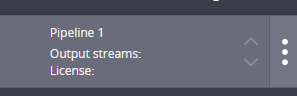
For every pipeline, there’s also information on license status. A pipeline may or may not be granted a license to run.
When you hover your mouse over a pipeline in the left pane, an option to open a submenu appears. Once you click on the symbol with three dots, the submenu opens.
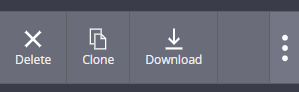
In the submenu, you can download the pipeline configuration, create a clone of it or delete it.
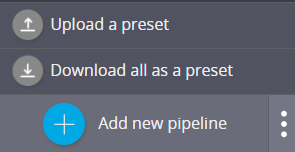
Once you have created every pipeline you need, you can easily back up all of them by opening the management menu and selecting the option Download all as a preset. Similarly, you can upload previously saved configuration using the option Upload a preset.