Troubleshooting
Q: What if Twenty-one encoder fails?
Chromium can restart itself, however, we restricted this for Twenty-one encoder because there is a possibility to get into an infinite loop due to a bad config file. Instead, you should use the system’s tools to (re)start the Twenty-one encoder.
sudo systemctl stop transcoder-base
to turn off the service and use the following command to investigate service logs; alternatively you can also edit config .json files (located /opt/transcoder/)
sudo journalctl –u transcoder-base
and start the service again
sudo systemctl start transcoder-base
In case this procedure fails to reinitiate the correct operation of the Twenty-one encoder, please try to also reboot the whole machine. If the problem is still not gone, contact Comprimato Support.
Q: What to do if the Twenty-one encoder server can’t boot the OS?
If you have performed a version upgrade at one point, you are able to boot into the older version of Twenty-one encoder. For more details, see section 2.8.
Q: How to access the system administration environment?
Use the Linux OS standard shortcut Ctrl + Alt + F2 to switch the view. Here you can use the Linux commands to operate the system. Using Ctrl + Alt + F1 will bring you back to the web UI.
Q: How to collect Twenty-one encoder log files?
You can see logs in the folder /opt/transcoder/transcoder/logs/. If you need to send logs to Comprimato Support, please copy the contents of the folder, archive them and share them. Alternatively, you can download them from UI, see Section 2.11.
Q: How can I change the default system password?
Comprimato Twenty-One Encoder installation runs on Rocky Linux 9, thus standard system commands apply. If you need to change the password for user transcoder then use the command sudo passwd transcoder in the system terminal. You can access the terminal window with the keyboard shortcut Ctrl + Alt + F2 while using the Twenty-one encoder UI via DisplayPort #1 or VGA (explained in Chapter 1.5 Display connection). Alternatively, you can use the feature mentioned in section 2.12.
Q: How can I change the UI password?
We have a script ready that can change the UI password. Switch to the system console environment (described above) and navigate to /opt/transcoder/ where there is a script set_ui_password.sh that will accomplish the task. Run the script with sudo permissions. Alternatively, you can use the feature mentioned in section 2.12.
Q: The UI shows that pipelines are working but I cannot receive any data on the output.
There is probably an issue on the network and the data is lost in transmission. Please verify that the network route is accessible between devices (source, transcoder, receiver) including settings of the firewall which may be configured to block Twenty-one encoder-related traffic (e.g. ports). You can use Wireshark to verify whether your target machine is receiving network data, or VLC to visualize the content.
Q: I see frame drops in UI what can be the cause?
There are two possible causes, i.e. flaws in the input or performance bottlenecks. The rule of thumb is to investigate whether drops occur when the machine is not fully utilized. If so, the problem may be in the input itself when some frames can be corrupted by losses during network transmission or compatibility issues. The other case is that high workload is responsible for frame drops, i.e. high utilization of HW resources (CPU, GPU, NI). Try to lower the performance drain by stopping some pipelines and observing the situation further.
Another possibility is configuring the Pipeline to have a higher Total bitrate overhead over the Video bitrate. Sometimes, the video bitrate fluctuation is higher which causes that the video stream cannot fit into the overall data limit where the solution is to drop frames.
Q: What information is needed for troubleshooting by Support?
To provide troubleshooting we need:
- Issue description
- Error messages
- Parameters of input stream(s) – standard compliance, resolution, framerate, audio channels, (number of configured input streams), etc.
- Parameters of output stream(s) – bitrates, resolution, framerate, encoding option, (number of configured output streams)
- Successive devices that receive Twenty-one encoder’s output stream
- Network configuration (e.g., do devices see each other on the network?)
Bear in mind that extensive issue description will help us work more efficiently and deliver the solution faster.
The best-case scenario is to send us the full diagnostic package, as mentioned in section 2.11.
A list of possible error messages in UI:
Example of indication of errors in the UI.
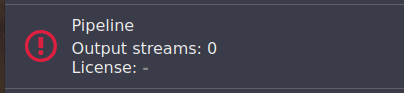
{pipeline} is not producing any data to destination - no video output is produced, rather the stream is filled with NULL packets; this message is normal during the pipeline initialization, otherwise, there may be a problem.
Some video frames are being dropped – a frame that cannot be processed (flawed images, high latency, etc.) by the pipeline, in a specified time slot, is dropped.
Stream {parameters} were not detected in source stream – provided stream parameters (width, height, frame rate or standard compliance) during configuration in UI do not match the auto-detected parameters from the input stream.
Video is being encoded at lower frame rate {xxx} than required {yyy} - video encoder is busy encoding too many streams, try to reduce the number of encoding streams.
Video is being decoded at lower frame rate {xxx} than required {yyy} - the video decoder is busy decoding too many frames. Try to reduce the number of input streams.
{Pipeline} is in unexpected state: {status} – contact the Support.
{Pipeline} is not receiving any PCR from source – Twenty-one encoder cannot detect any input data or all PCR packets are dropped.
Pipeline creation failed! Nvidia GPU is required to run this pipeline with GPU postprocessor. – There are two possible explanations, either:
- There is no Nvidia GPU in the Twenty-One Encoder system.
- The Nvidia driver is too old and Twenty-One Encoder was unable to enumerate GPU in the system.
Q: How can I contact Comprimato Support?
Email us at support@comprimato.com, or visit our Support Center at http://support.comprimato.com and open a ticket. Please make sure to provide a detailed issue description.